

• Home
  • Startup
  • Money & Finance
  • Starting a Business
    • Branding
    • Business Ideas
    • Business Models
    • Business Plans
    • Fundraising
  • Growing a Business
  • More
    • Innovation
    • Leadership
Trending

Jeffrey Epstein Advised an Elon Musk Associate on Taking Tesla Private

February 14, 2026

OpenAI’s President Gave Millions to Trump. He Says It’s for Humanity

February 13, 2026

‘Uncanny Valley’: Tech Elites in the Epstein Files, Musk’s Mega Merger, and a Crypto Scam Compound

February 11, 2026
Facebook Twitter Instagram
  • Newsletter
  • Submit Articles
  • Privacy
  • Advertise
  • Contact
Facebook Twitter Instagram
UptownBudget
  • Home
  • Startup
  • Money & Finance
  • Starting a Business
    • Branding
    • Business Ideas
    • Business Models
    • Business Plans
    • Fundraising
  • Growing a Business
  • More
    • Innovation
    • Leadership
Subscribe for Alerts
UptownBudget
Home » Apple Suddenly Releases Urgent iPhone Rapid Security Response Update
Innovation

Apple Suddenly Releases Urgent iPhone Rapid Security Response Update

adminBy adminJuly 10, 20230 ViewsNo Comments3 Mins Read
Facebook Twitter Pinterest LinkedIn Tumblr Email

You might have thought that Apple would be releasing its latest iPhone software update right about now. After all, iOS 16.6 is in the works and five betas of that have already been released to developers.

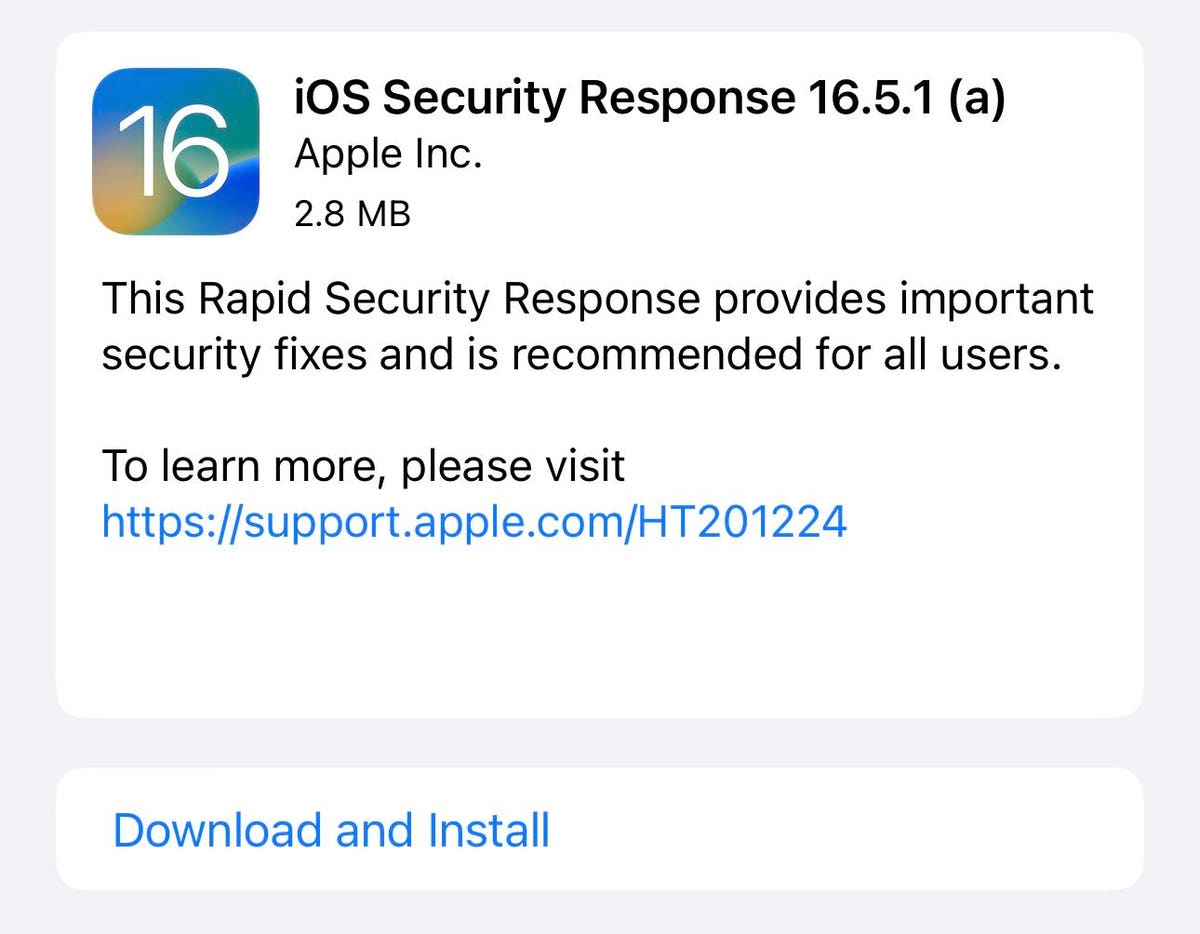
Instead, Apple has released a Rapid Security Response (RSR)—only its second-ever use of this mechanism. And it’s a tiny download (under 3MB) that’s fast to install.

All of which tells us it’s pretty urgent, right?

The thing about Rapid Security Responses is they only deal with one topic: security issues. That’s the reason the most recent update, iOS 16.5.1, was a regular update and not an RSR, because it included non-security elements. More details on that here.

Which iPhones can run iOS 16.5.1 (a)?

Apple iOS 16.5.1 (a) runs on all iPhones released in late 2017 or later, that is, including iPhone 8, iPhone 8 Plus and iPhone X, and this update includes features relevant to all those handsets. It is specifically for iPhones running iOS 16.5.1 (and iPads running iPadOS 16.5.1).

How to get it

Updating is easy: open the Settings app on the device and then choose General, then Software Update. Next, choose Download and Install, it’ll all be sorted quickly. Actually, there’s something else new in this update. You need to ensure that the iPhone will download RSRs. Apple says, “iPhone or iPad: go to Settings > General > Software Update > Automatic Updates, then make sure “Security Responses & System Files” is turned on.”

What’s in the release

The first RSR, released on May 2, described exactly what RSRs do. At the time, Apple had said, ““Rapid Security Responses are a new type of software release for iPhone, iPad and Mac. They deliver important security improvements between software updates – for example, improvements to the Safari web browser, the WebKit framework stack or other critical system libraries. They may also be used to mitigate some security issues more quickly, such as issues that may have been exploited or reported to exist.”

That’s the key phrase: “issues that may have been exploited” and it’s what is germane here.

If you have an iPhone running iOS 16.5.1, then this will address an issue which, to quote Apple, “may have been actively exploited”. Which explains why Apple has recommended it is installed urgently.

Apple’s description is this:

“Impact: Processing web content may lead to arbitrary code execution. Apple is aware of a report that this issue may have been actively exploited.

Description: The issue was addressed with improved checks.”

The good thing about RSRs is they are small and quick to install, taking a very short time to download an a moment to install and restart. There is also a version for macOS users, by the way.

Read the full article here

Share. Facebook Twitter Pinterest LinkedIn Tumblr Email

Related Articles

A Robotaxi Hit A Child. Here’s What We Know

Innovation January 29, 2026

Apple Suddenly Releases Surprise iPhone Update With Features And Fixes

Innovation January 28, 2026

‘Arc Raiders’ Just Added 2 Powerful New Items In Latest Update

Innovation January 27, 2026

Two App Updates Make The Apple Watch Even Better For Fitness Tracking

Innovation January 26, 2026

A New Paradigm For AI Decision Making

Innovation January 25, 2026

A Psychologist Shares Your Science-Backed Horoscope—Here’s What Yours Says About You

Innovation January 24, 2026
Add A Comment

Leave A Reply Cancel Reply

Editors Picks

Jeffrey Epstein Advised an Elon Musk Associate on Taking Tesla Private

February 14, 2026

OpenAI’s President Gave Millions to Trump. He Says It’s for Humanity

February 13, 2026

‘Uncanny Valley’: Tech Elites in the Epstein Files, Musk’s Mega Merger, and a Crypto Scam Compound

February 11, 2026

More Than 800 Google Workers Urge Company to Cancel Any Contracts With ICE and CBP

February 10, 2026

Loyalty Is Dead in Silicon Valley

February 9, 2026

Latest Posts

The Tech Elites in the Epstein Files

February 6, 2026

Mistral’s New Ultra-Fast Translation Model Gives Big AI Labs a Run for Their Money

February 5, 2026

ICE Asks Companies About ‘Ad Tech and Big Data’ Tools It Could Use in Investigations

February 3, 2026

TikTok Data Center Outage Triggers Trust Crisis for New US Owners

February 2, 2026

No Phone, No Social Safety Net: Welcome to the ‘Offline Club’

February 1, 2026
Advertisement
Demo

UptownBudget is your one-stop website for the latest news and updates about how to start a business, follow us now to get the news that matters to you.

Facebook Twitter Instagram Pinterest YouTube
Sections
  • Growing a Business
  • Innovation
  • Leadership
  • Money & Finance
  • Starting a Business
Trending Topics
  • Branding
  • Business Ideas
  • Business Models
  • Business Plans
  • Fundraising

Subscribe to Updates

Get the latest business and startup news and updates directly to your inbox.

© 2026 UptownBudget. All Rights Reserved.
  • Privacy Policy
  • Terms of use
  • Press Release
  • Advertise
  • Contact

Type above and press Enter to search. Press Esc to cancel.